H&R Block Online
H&R Block offers H&R Block At Home for free on their website. In their version, you enter all your information in manually but it definitely saves you money to do it this way. Once you have finished entering data and have reviewed everything carefully you can either e-file or file by mail.
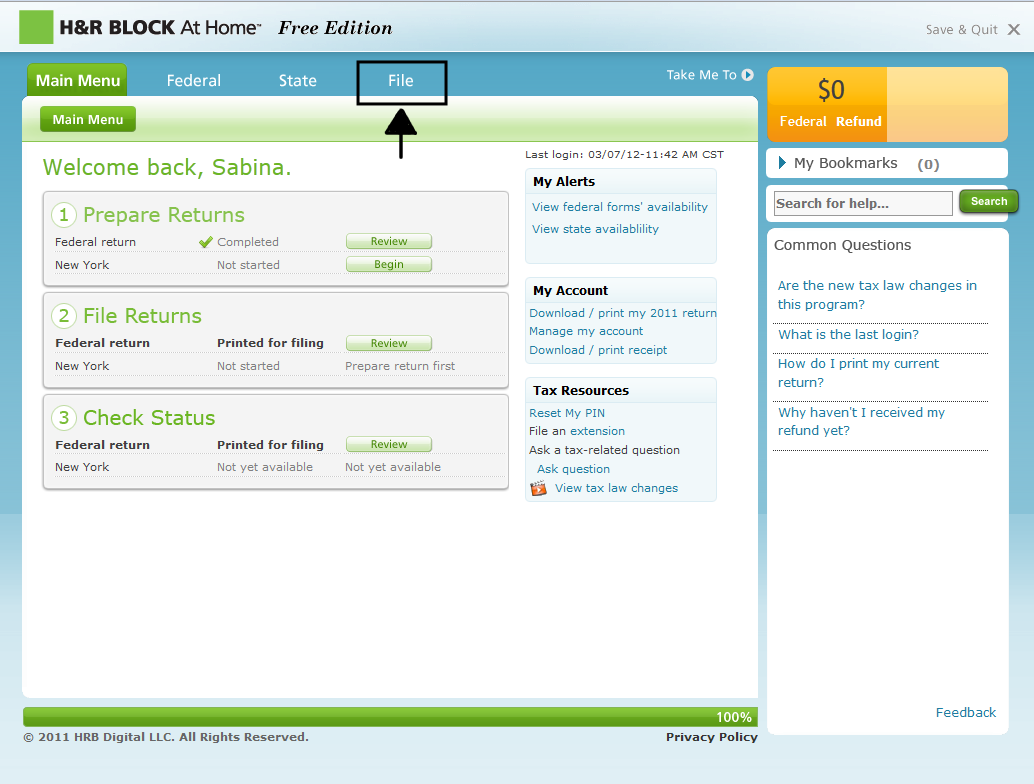
To print your unfiled return, first log in to your H&R Block account. Click the File tab at the top of the screen.
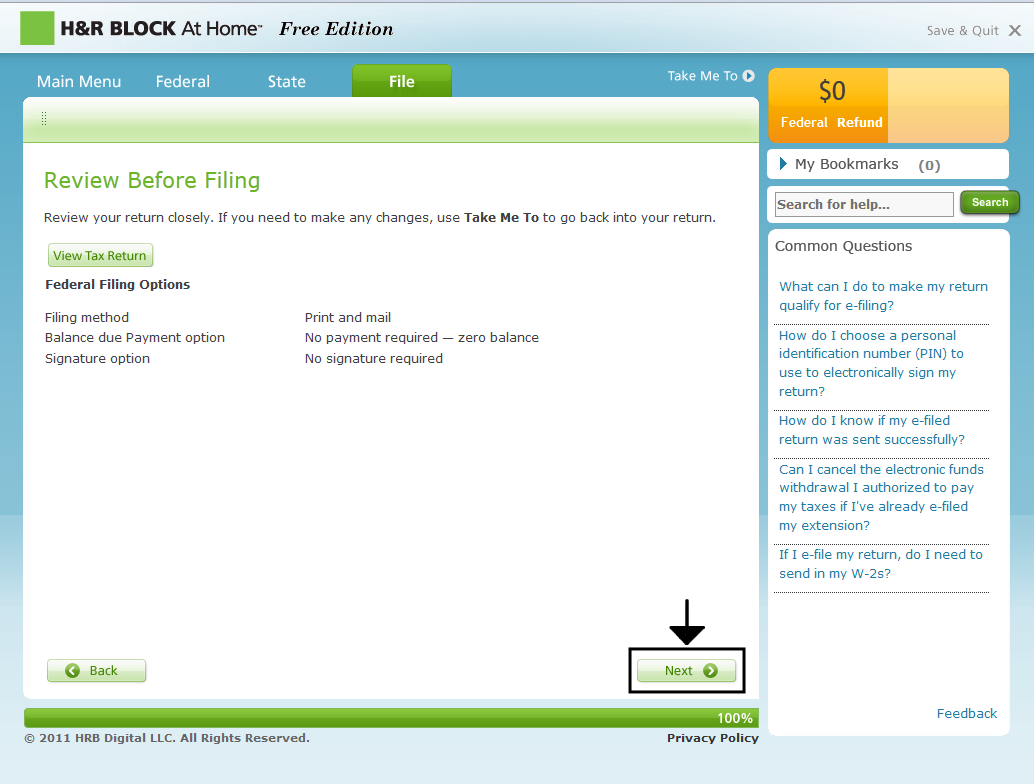
 Click Next until you reach the Review Before Filing page pictured below. This will take you to a review page. If you haven't done so yet, review all the information you have entered. One small mistake can severely harm your taxes and may cost you more than you imagine.
After reviewing, click Next to the Mailing Your Return(s) page.
Click Next until you reach the Review Before Filing page pictured below. This will take you to a review page. If you haven't done so yet, review all the information you have entered. One small mistake can severely harm your taxes and may cost you more than you imagine.
After reviewing, click Next to the Mailing Your Return(s) page.
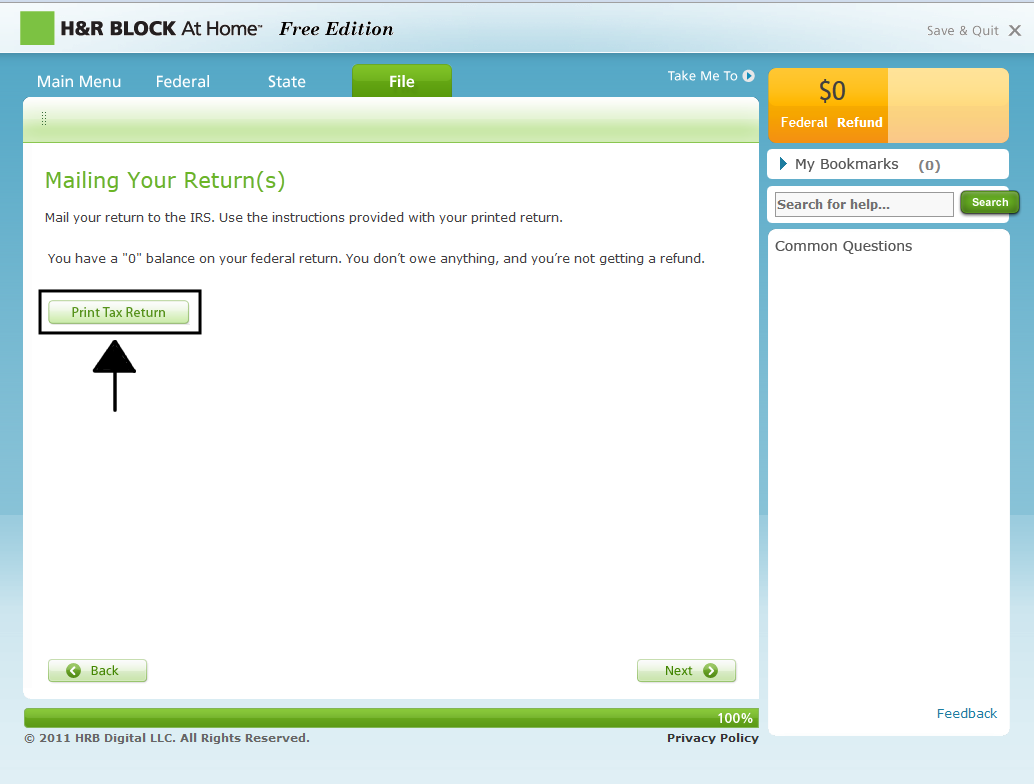
 Click the Print Tax Return button.
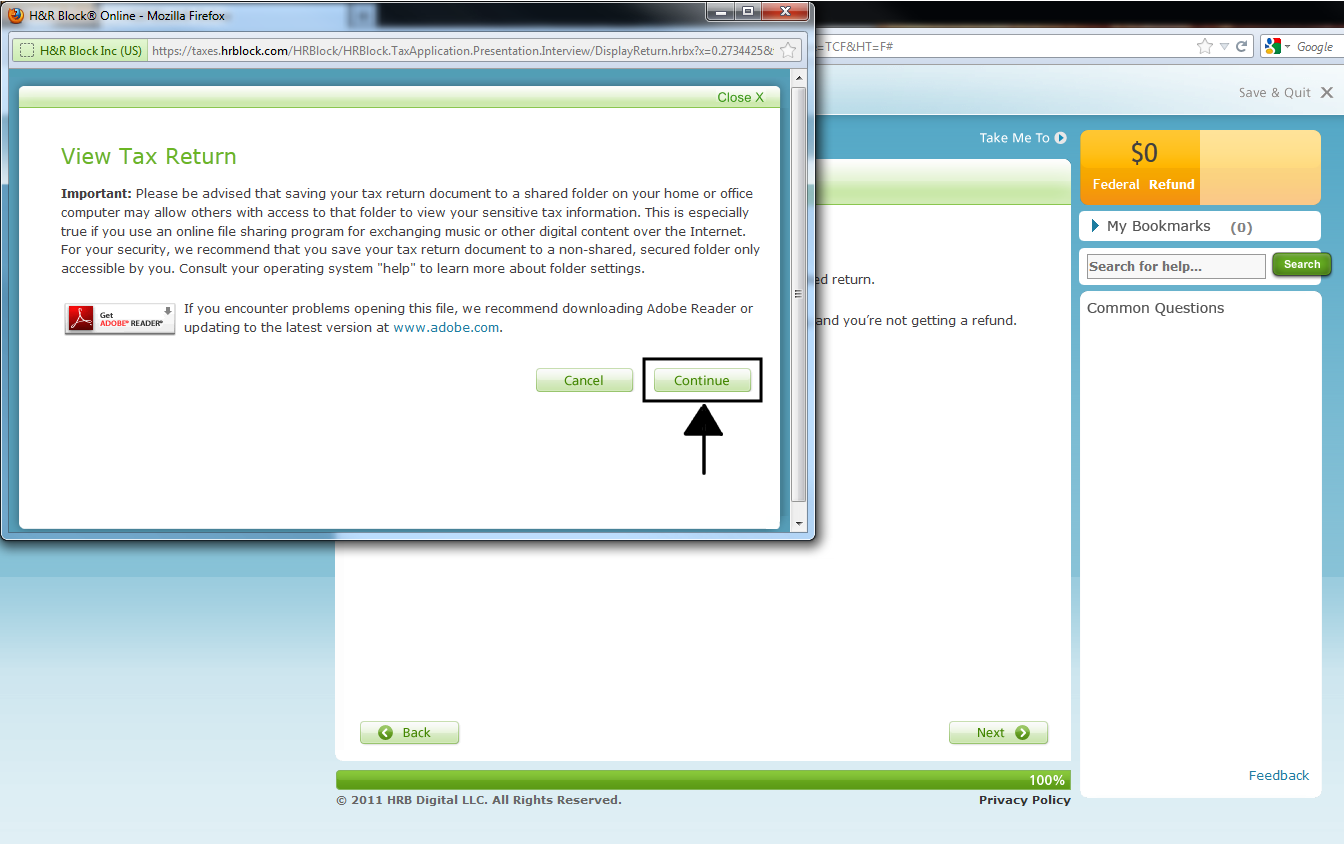
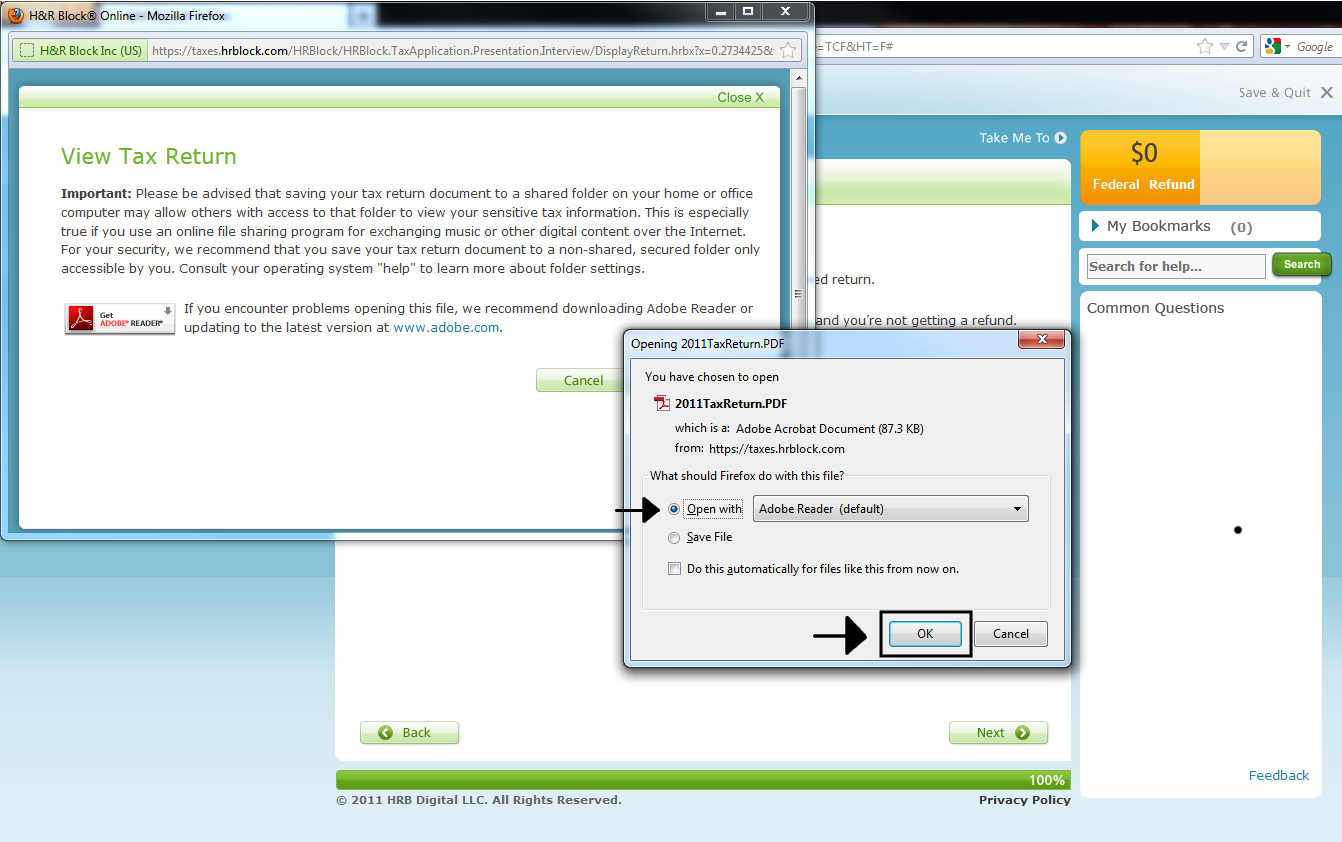
 The View Tax Return window will open. Click Continue.
 The File Download window will open. Click Open to view your return. An Adobe Reader window will open with your return.
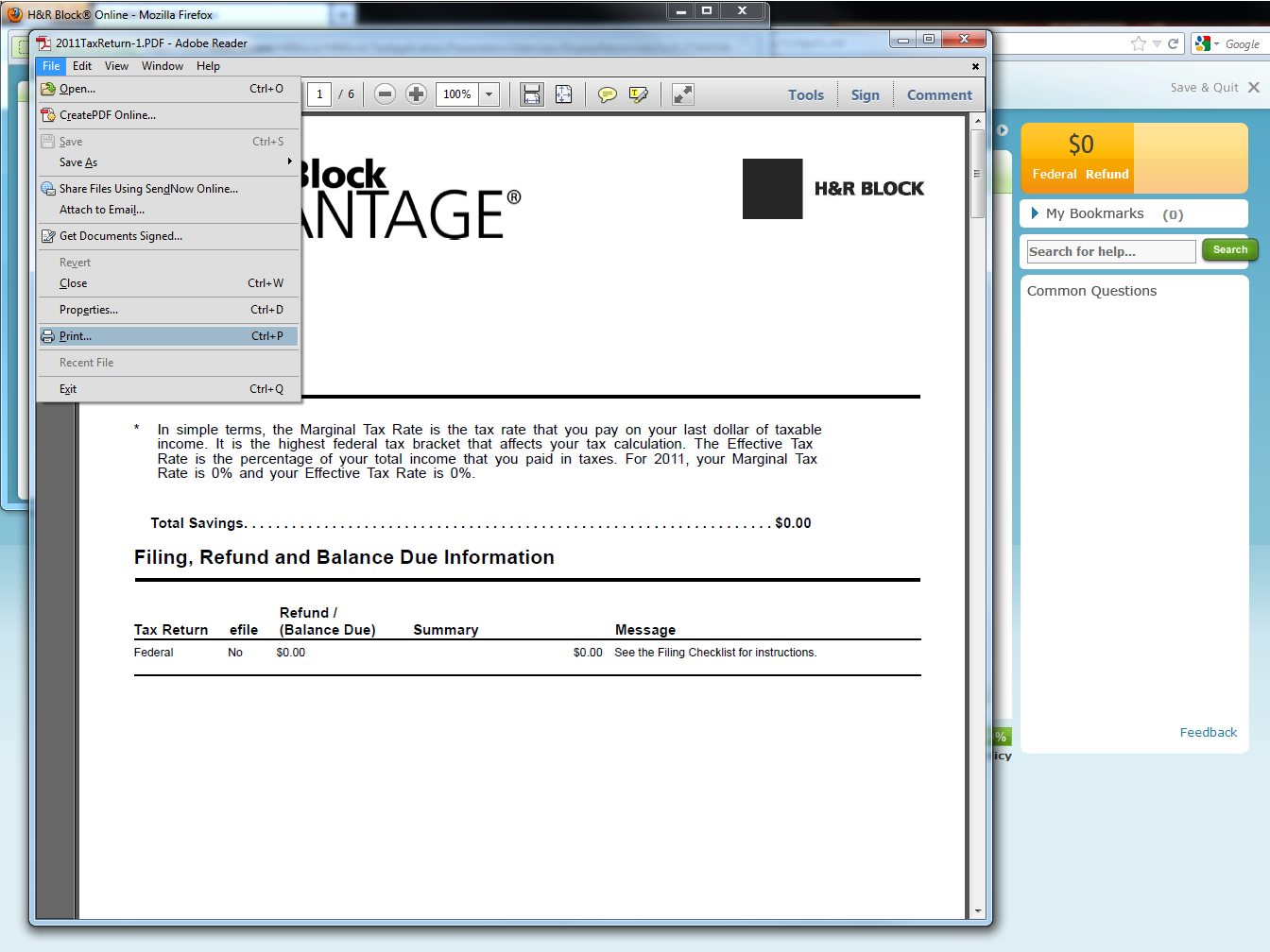
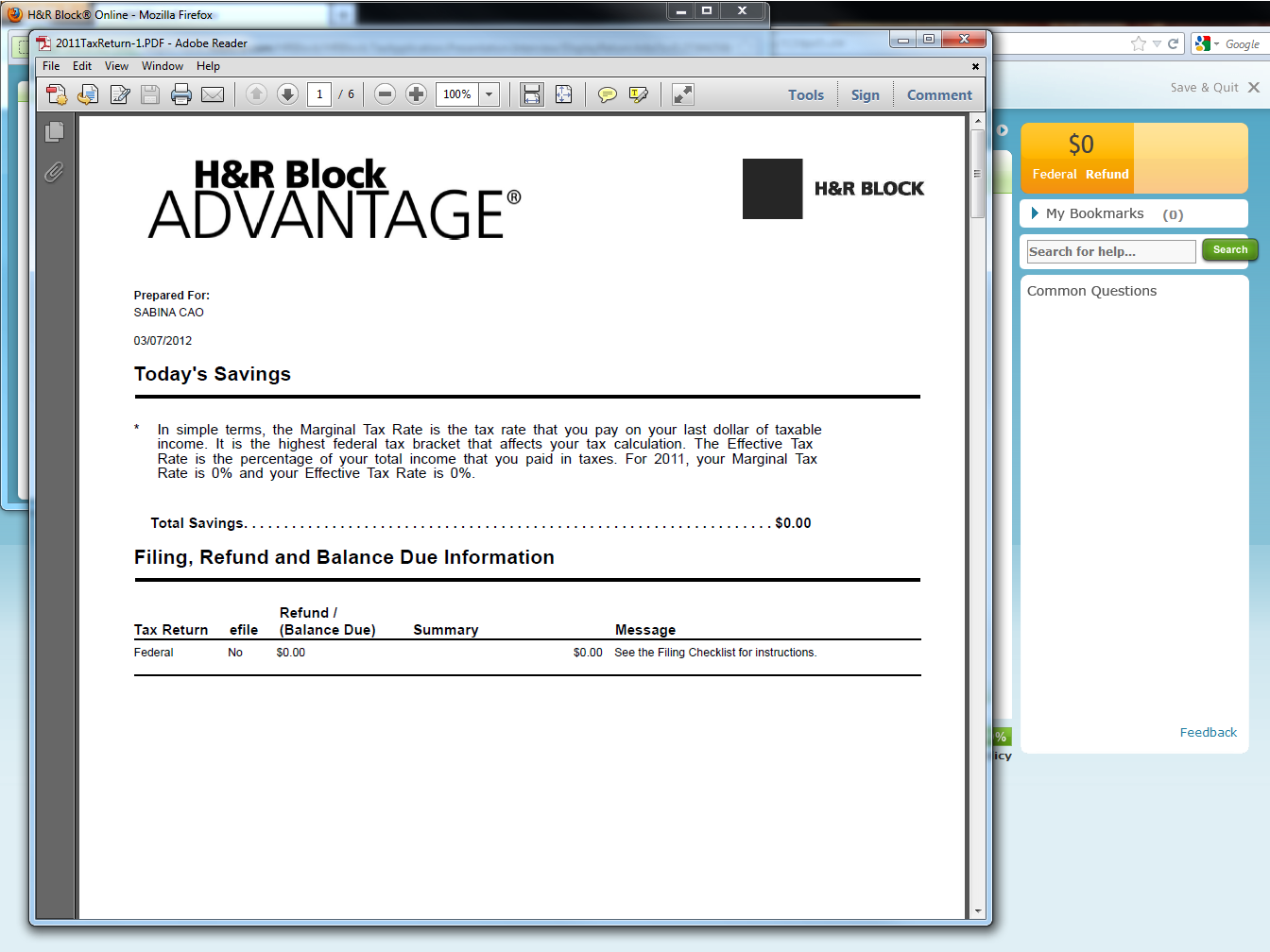 Either click the Printer icon or choose Print from the File menu.
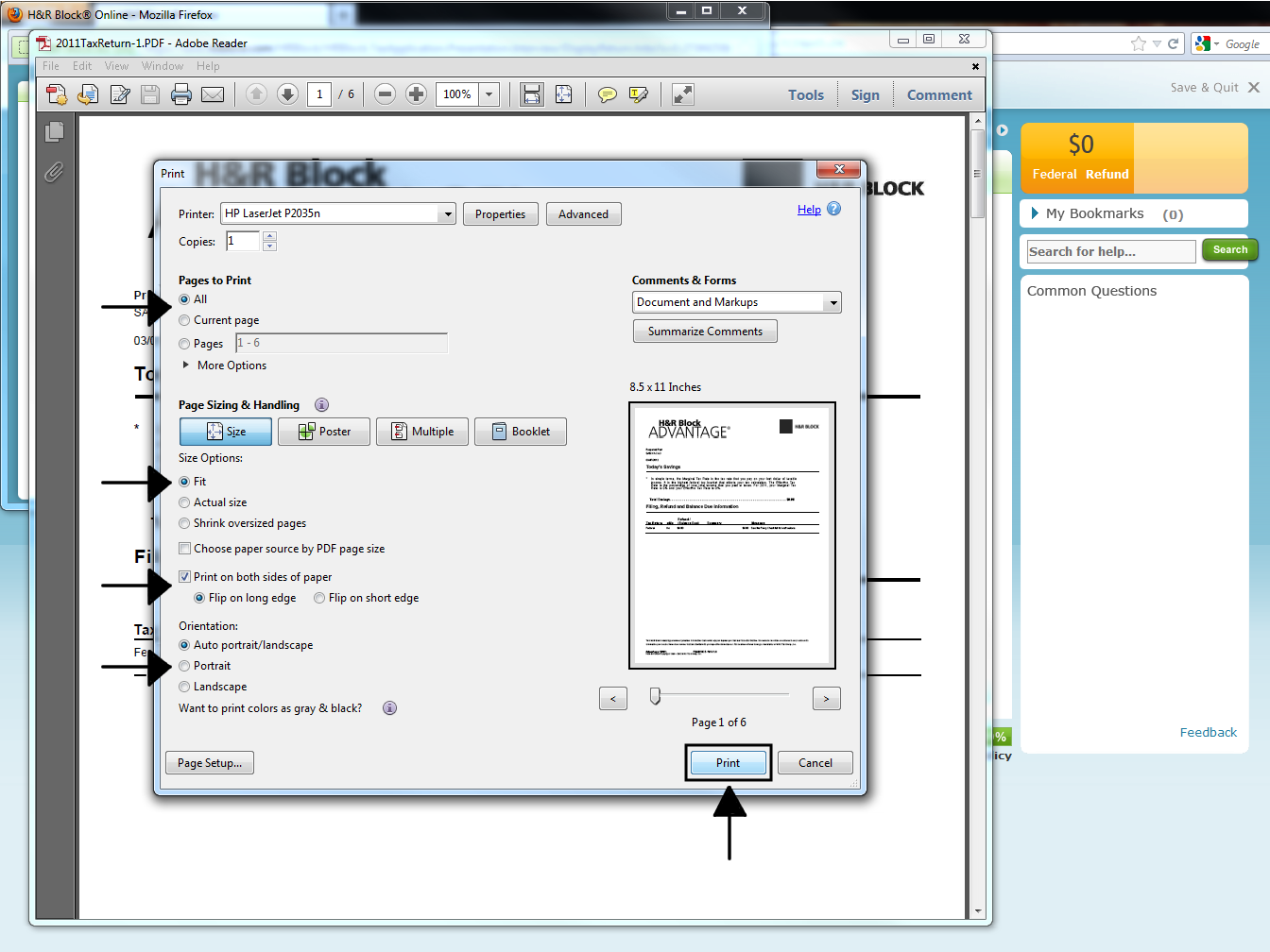
 A Print Settings/Preview box will open. Correct the sizing of the document if necessary - make it fit on the page, or print the actual size if it is already 8.5x11. You can choose either single-sided or double-sided; both formats will be accepted by the IRS as long as the documents are clear and readable. Click Print and you are done.
 When viewing your return, you'll find a page titled 2011 Federal Tax Return Filing Instructions. This page provides instruction on what documents to include with your return and the address to mail your return to. Follow the instructions and feel a little better.
Best Toner Saving Printers of 2016
Best Ink Saving Printers of 2016
Recommended Ink Saving Fonts
What the Font?
1 Comment
April, 2016
Best Toner Saving Printers of 2016
Best Ink Saving Printers of 2016
June, 2015
Best Ink Saving Printers 2015
May, 2015
Customers Love Inkfarm
Customers Love Inkfarm
May, 2014
Aspiring Business Contest Winners
March, 2014
Win A Printer For Your Business Or Start-Up!
February, 2014
Best Ink Saving Printers 2014
January, 2014
New Year, New Beginning Contest Winners
3D Printing for 2014
December, 2013
Printing Nuances and How to Fix Them
"New Year, New Beginning" Photo Contest Guidelines
Printable Holiday Elf Decoration
November, 2013
Printable Thanksgiving Decoration
September, 2013
2013 DIGITAL INNOVATION SCHOLARSHIP WINNER
July, 2013
About the Lexmark 200xl compatible ink cartridges
Page yield ratings and coverage percentages explained
Black and Tri-color cartridge pre-installation guide
Multi-color cartridge pre-installation guide
Alien Earth Photo Contest Winner
May, 2013
"Alien Earth" photo contest entry guidelines
Digital Innovation Scholarship 2013
Best Toner-Saving Laser Printers - 2013
April, 2013
Epson ink cartridge pre-installation guide
March, 2013
Best Ink-Saving Printers 2013
October, 2012
Breathtaking Portraits Photo Contest Winners
September, 2012
How Planned Obsolescence Affects You
$100 Photo Contest
August, 2012
GeekGirlCon 2012 Review
Drupa 2012 highlights
July, 2012
2012 Consumer Printer Trends
Laser Printers vs. Inkjet Printers: Pros and Cons
Sizzling Summer Photo Contest Winners
June, 2012
Why is Printer Ink so Expensive?
Genuine vs. Remanufactured and Compatible Cartridges
Funniest Candids Photo Contest Winners
May, 2012
A Glossary of Popular Printer Terms
Crafty Fridays: Printer Ink Cartridge Stamps
How to Make a Shower Karaoke with your iPad!
Almost Human Photo Contest Winners
Upcycling Ink Cartridges
April, 2012
5 Tips on Saving Printer Ink
Top 4 Printers of 2012
Best Ink-Saving Printers - 2012
Free Ink Giveaway
Talking GeekGirlCon with Susie Rantz
Beat the Winter Blues Photo Contest Winners
March, 2012
Laser "Un-printer" Wipes Paper Clean
Owning a Hackerspace: An Interview with Matt Westervelt
Instaprint: The Polaroid of Today?
Why you Should Print your Tax Return
H&R Block Online: How to Print your Tax Return
TurboTax Online: How to Print your Tax Return
How to get Copies of Previous Tax Returns
Printing from the Cloud
iPhone Photo Contest Winners
January, 2012
Seasons Greetings Photo Winners
December, 2011
Saving Your Photos in the Digital Age
12 Great and Free Holiday Fonts
Urban Black and White Winners
October, 2011
Photography Contest #2- Awesome Autumn
Kodak Stock in Free-fall
September, 2011
Bright and Beautiful Colors Winners
Photo Contest Terms and Conditions
August, 2011
DPI and Image Size
Printing On Photo Paper
Google Cloud Print From Your Android Phone
Google Cloud Print From Your iPhone
Digital Camera Modes
Photo Paper Types
GIMP Tutorial: Introduction GIMP Tools
The Cost of Digital Cameras
Compatible FAQ
July, 2011
Image File Extensions
Color Management Basics Page 3
Color Management Basics Page 4
Color Management Basics
Color Management Basics Page 2
Apple Loses in Kodak Patent Suit but Kodak Stock Falls
June, 2011
Printer Software for Saving Ink
Conservation and the Environment
Recommended Ink Saving Fonts
Best Printers for Saving Ink - 2011
May, 2011
Printer Ink - Toxic?
March, 2011
Holy Fonts, Batman!
What the Font?
Are Page Yield Ratings A Scam?
How do I remove the first page of a federal printout and start with the 1040 form ? your info page makes it hard to use a duplex print option